
Step by step guide
How to log in to JustTools with Multi Factor Authentication (MFA)
At Just SA, protecting your information and the information you provide when generating client quotes is a priority. As part of our ongoing commitment to security, we've introduced Multi Factor Authentication (MFA) for all adviser access to the JustTools portal.
Logging into JustTools with MFA enabled is very similar to logging in before there was MFA, with just a few extra steps. This document explains what to expect and how to log in successfully.
Step by step guide:
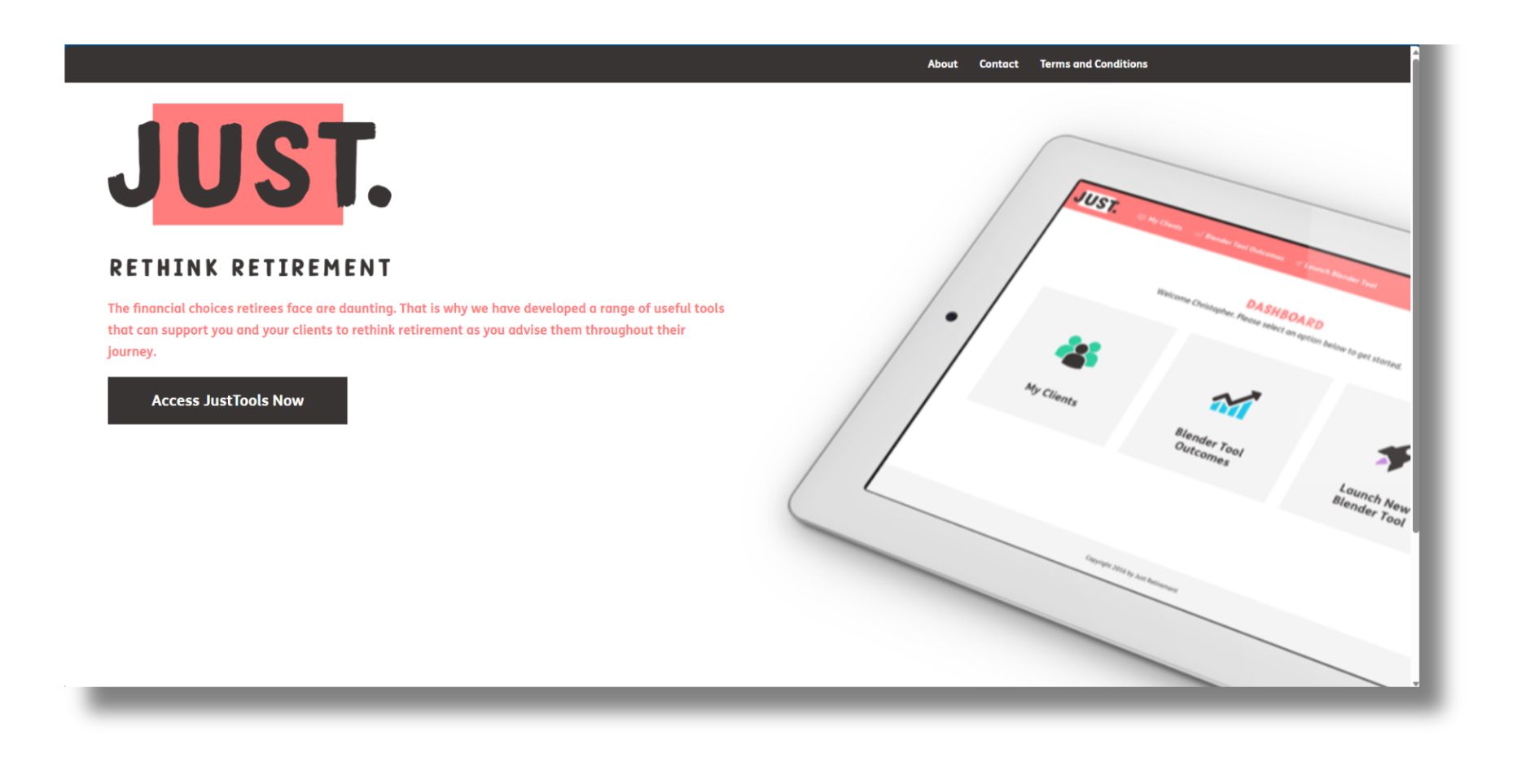
1. Navigate to the landing page and click "Access JustTools Now":
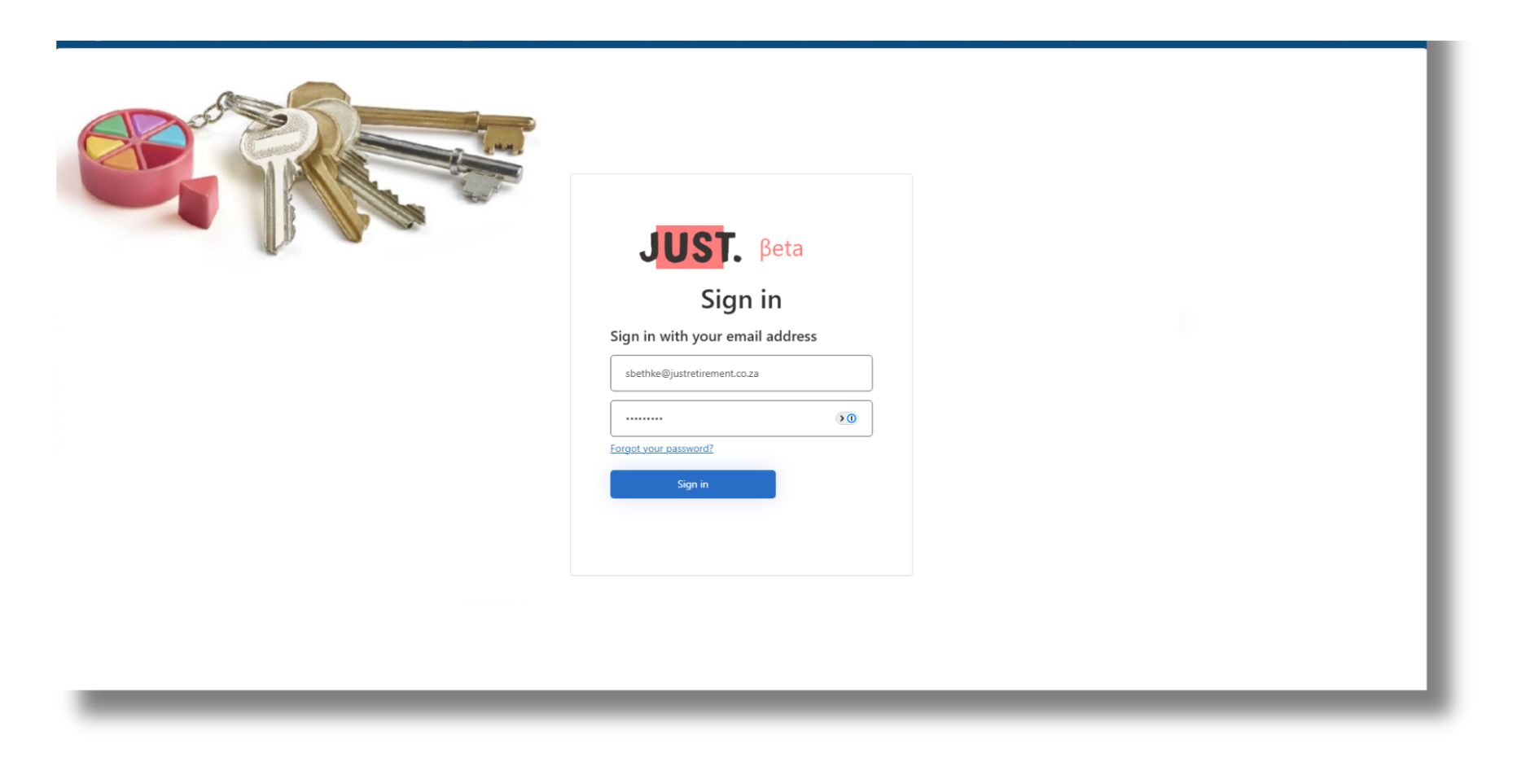
2. Enter your email address and password then click "Sign in":
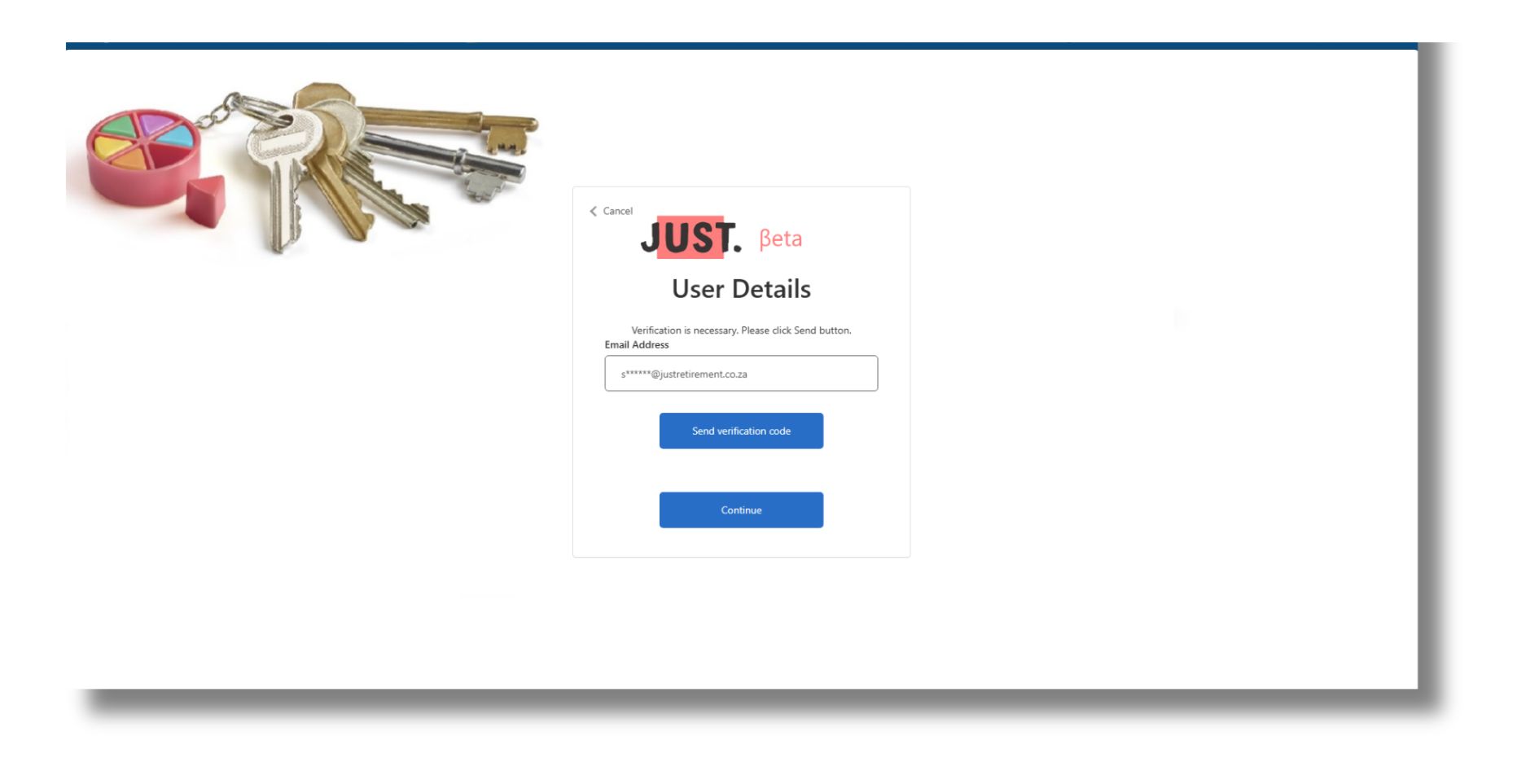
3. You will be presented with a "User Details" dialog showing your email address. Click "Send verification" code to have a verification code sent to your email address:
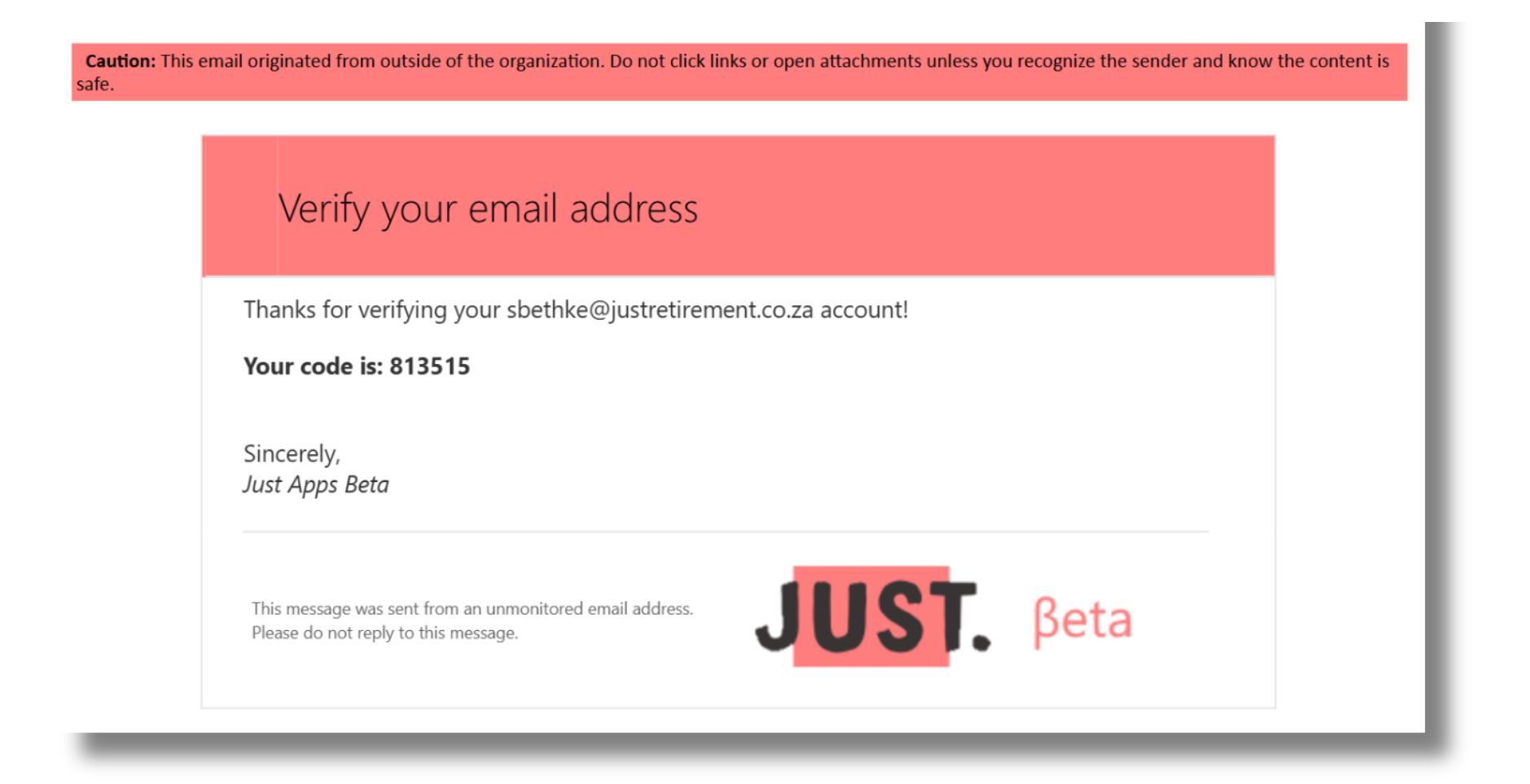
4. Look for the verification email in your inbox (it may take a few minutes to arrive, depending on your mail service provider), it should look something like this:
5. The JustTools login process should now be asking for the verification code. Enter the code you received in the email and click "Verify code":
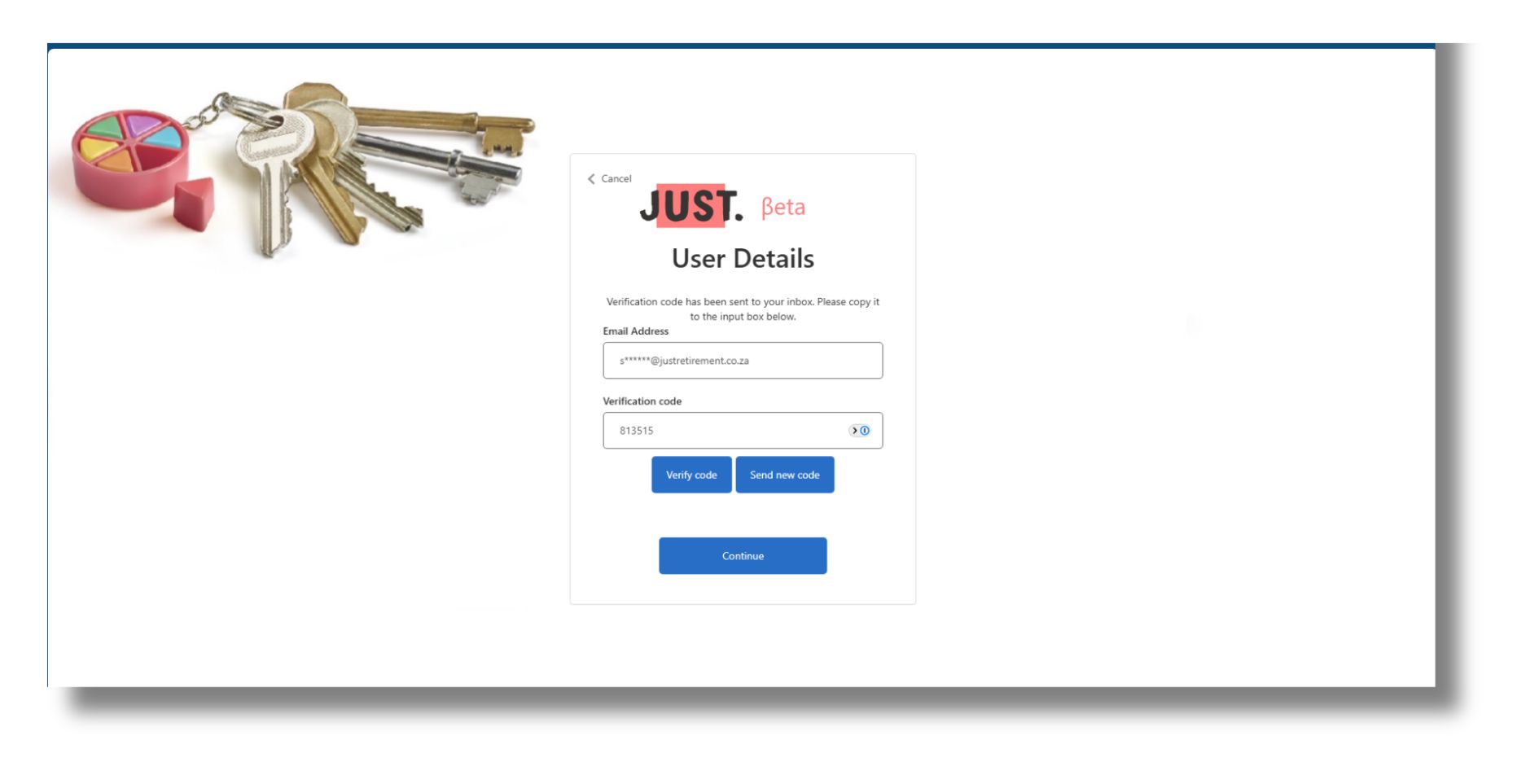
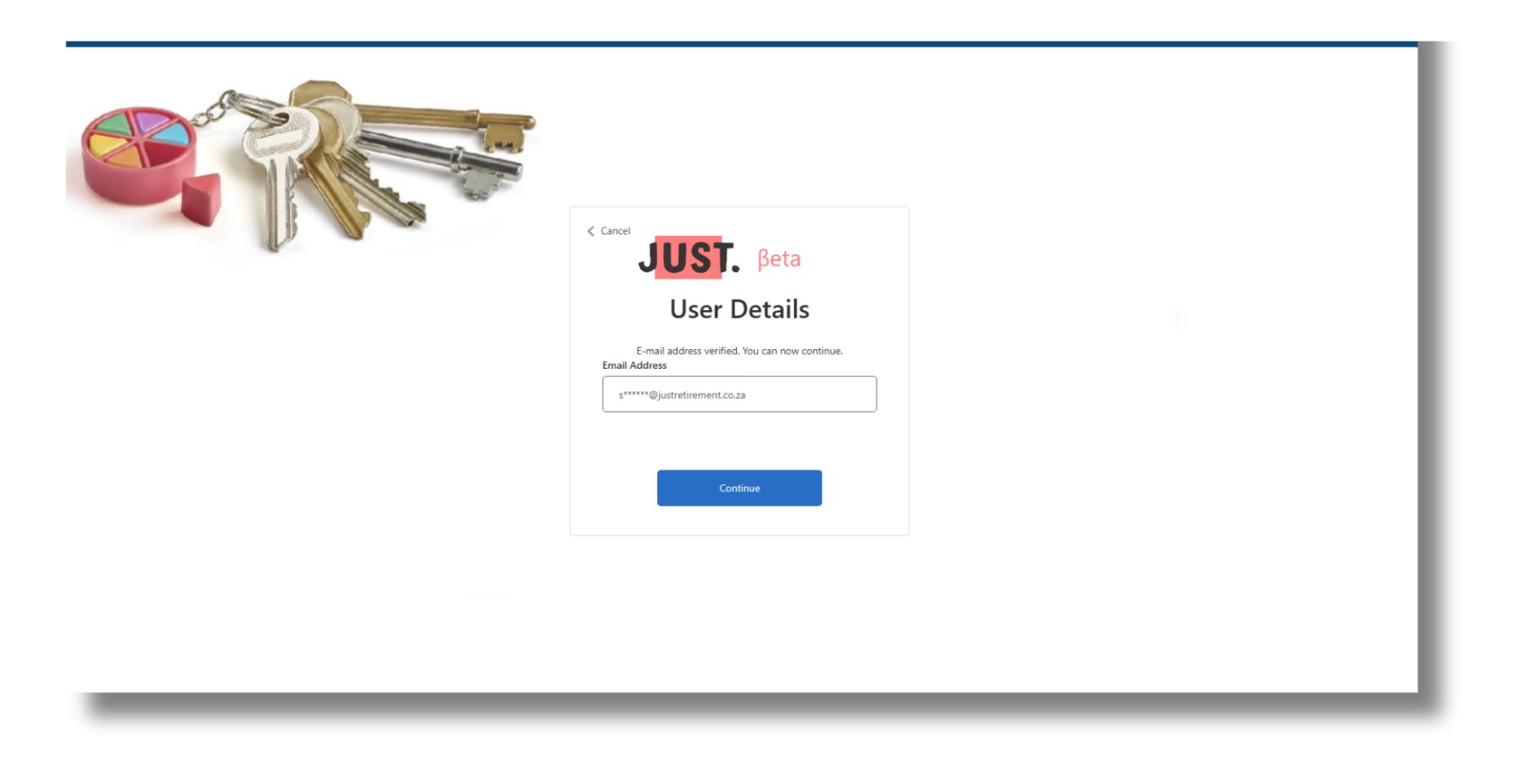
6. You should now receive a confirmation message. Click "Continue":
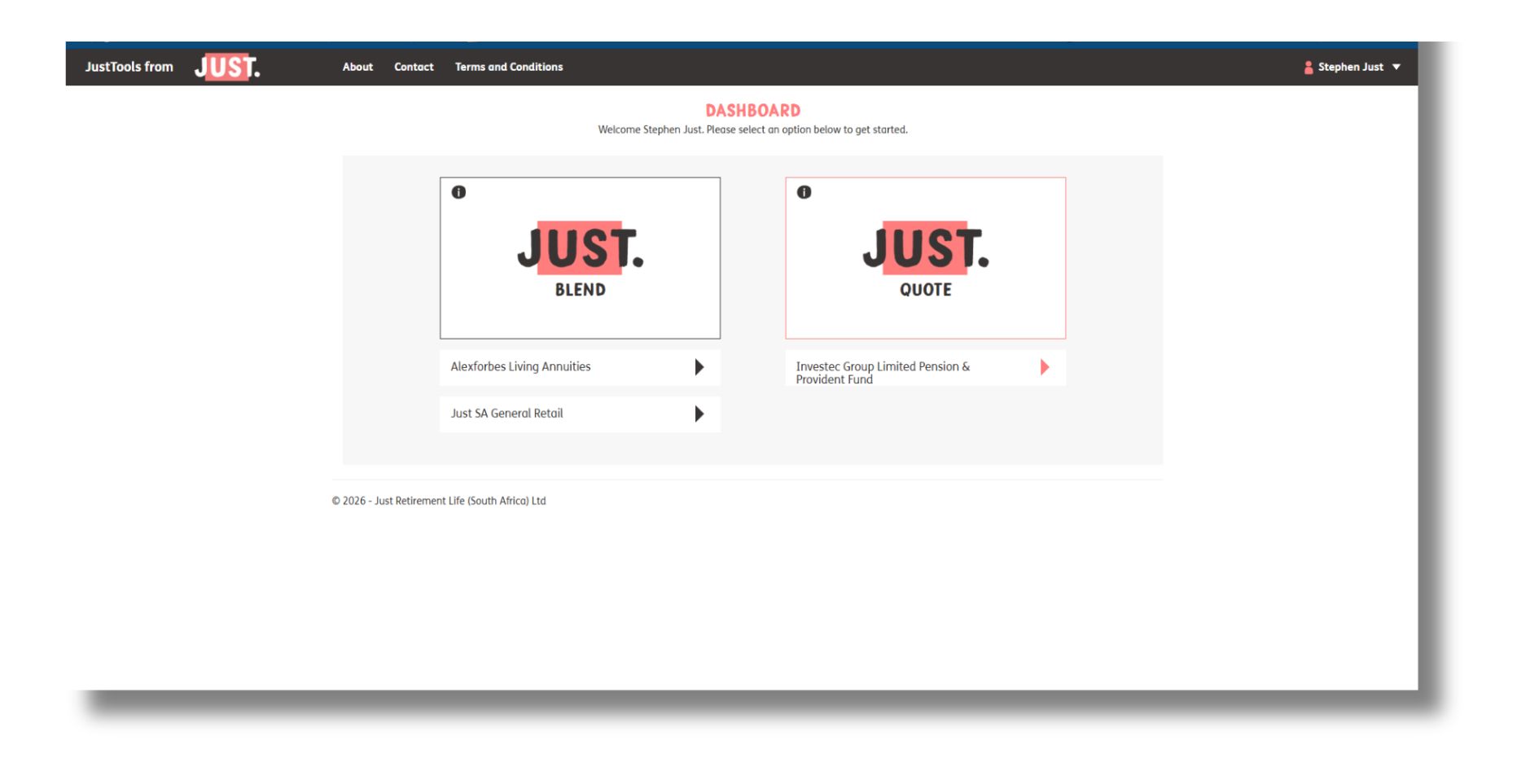
7. You should now be logged in and see the dashboard:
8. If you see "Claim not verified: [Email Address]" in red on the User Details screen, it means that you clicked Continue instead of Verify code. Don't worry, just click Verify code and the process will pick up where it left off (step 6.)